 Support for eserp 1.5 has been discontinued as of 01.01.2024, the online help will no longer be updated
 Program module
Tools | DMS | Program module
All the documents that have been added using eserp are shown in the DMS module.
The focus is on grouping documents together on the time axis for each process type.
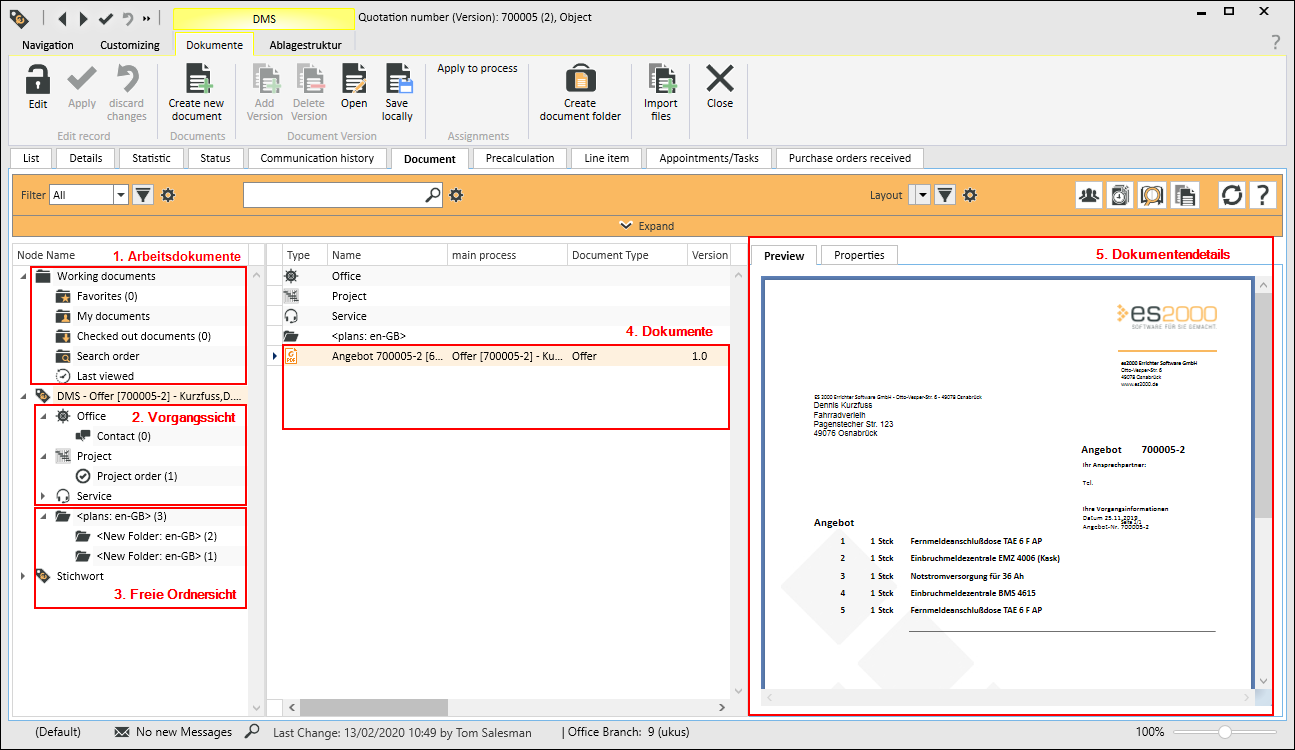
1. Working documents
The following areas are part of the working documents:
Favorites
Shows all documents that have been saved as Favorites. You can add documents as Favorites or remove them from the Favorites using the context menu (right click on the document or document version).
My documents
All the documents or versions of a document created by the current user.
Checked out documents
All the documents that were checked out for editing by the current user are shown in this folder.
Search folder
Displays all the document versions that were opened, saved locally, or checked out in the Search dialog.
Last viewed
Displays all the document versions that were last opened from the document management system.
2. Process view
All the documents for the particular process type are grouped according to the relative process number at the separate nodes of the process view. If a process type has a sub folder, the directory tree is kept and the documents in it are shown grouped on the time axis.
3. Free folder view
The free folder view is a general document filing view that is not related to any process. The directory / folder structure can be set individually. The documents are grouped according to time in the particular folders.
4. Document
A document possesses the following properties: Document name, author, creation date, file size, etc. There can be different versions of each document. Each version can be assigned to different processes.
Sub folders that are on the same level as the document versions can also be shown in this area.
5. Document details
The document details are divided into three main areas: As well as a document preview, the document properties, properties of a document version, and the document history can be viewed.
Preview
The document preview cannot be edited.
The software registered for the file type in the Windows registry is used for the preview (for example: Adobe Acrobat Reader for PDF files). If a preview is unavailable, there is no assignment of the particular file name extension to a corresponding application in the Windows registry.
Properties
The document properties and the properties of a document version are displayed.
Search bar
The search bar allows document versions to be found more quickly.
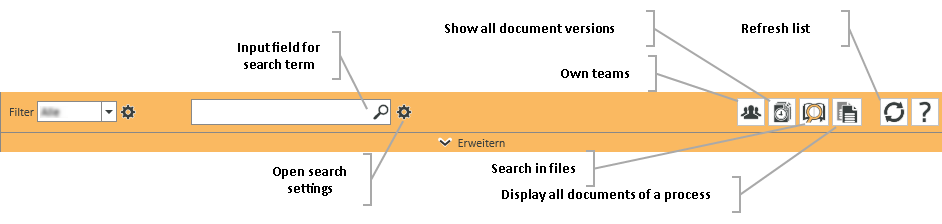
Full text search
As well as the full text search, user defined filters can be used to find document versions.
A preview of the document and a summary of the properties of the document and of the specific version are displayed for the selection.
The selected document version can be opened, saved locally, or checked out. Document versions that were opened or saved locally during the search process are saved and displayed under Working documents in the Search folder area.