Support for eserp 1.5 has been discontinued as of 01.01.2024, the online help will no longer be updated
 User passwords
Settings | General | Authorizations | References | User passwords
A password must be assigned to every eserp user to identify the user.
When eserp is started, every user will be required to enter their Personnel number and their password (exception: Single sign-on).
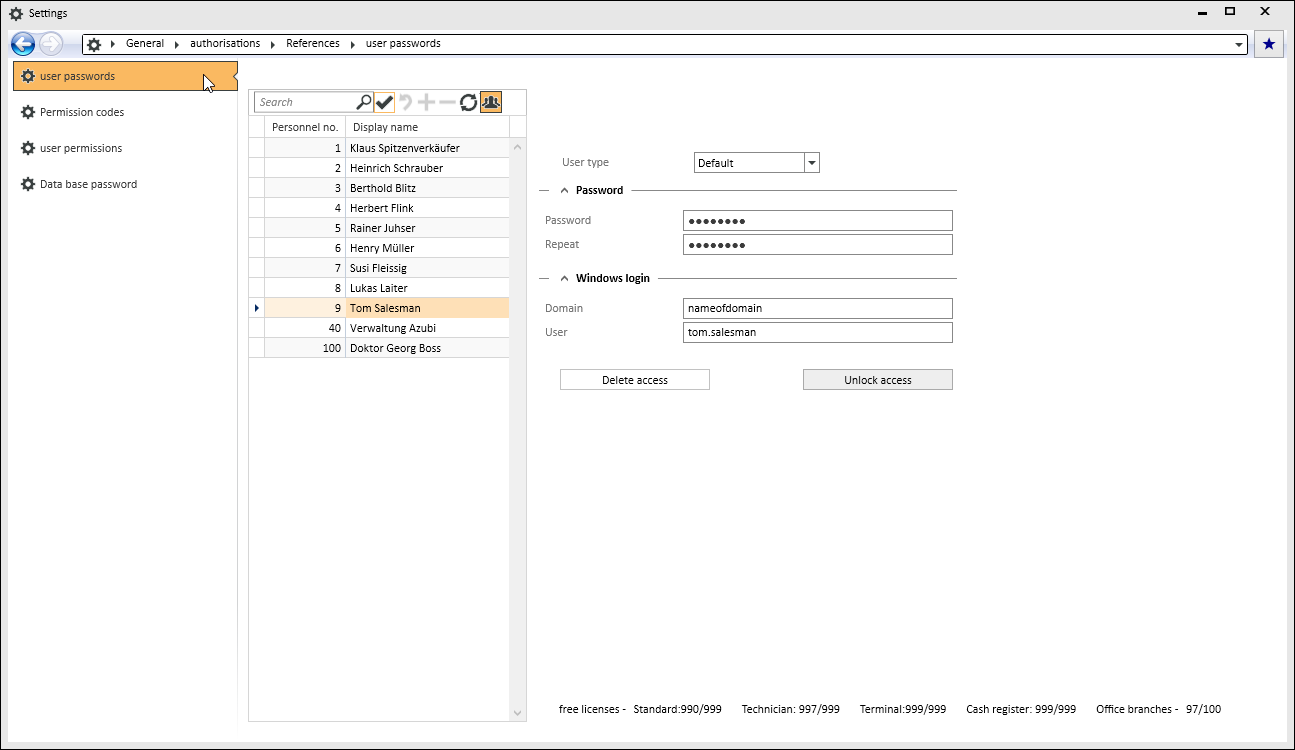
This menu command allows you to enter and edit user specific passwords.
eserp users can edit their own Change password later.
Single sign-on
Single sign-on (SSO) essentially means that if a user performs a single Windows authentication at a workstation, they can access eserp without needing to log in each time. This requires that the Windows login data (domain / user) have been recorded for the eserp user.
You can specify the functions / modules that are accessible to the particular user under Settings | General | Authorizations | References | User permissions.
You must assign a user password to each user to identify them.
Every user can change their own password at any time using the Password dialog.
User type
You can select the type of license to be assigned to each user here. The license types available for selection depend on the type and number of licenses purchased.
The following license types are available:
Default
Item number 999100 User License (Network)
License for eserp using a local or network installation (for example for back office, sales, company management, etc.). All eserp modules and program functions can be used with a standard license (authorizations can be used to restrict access).
Terminal
Item number 999150 User License (Terminal)
User license to use eserp in a terminal server environment.
Technician
Item number 999050 User License (Technician)
License with restricted range of functions. This is used for field work technicians who do not need access to all the eserp functions.
Access to the following modules is included:
-
In Calendar and Resource elements, the Static text element is used to display the title.
-
Personnel assignment planning (PAP)
-
Personnel team ability
-
Dispatching
-
Email
-
TAPI
-
Systems
-
Maintenance
-
Service
-
Help desk
-
Fault notification
Technician base (time recording license)
Item number 999070 User License (Time Recording)
License with restricted range of functions. This is used for field work technicians who do not need access to the desktop functions (eserp, esCash, etc.).
This license enables recording of times on own orders and leave requests in esweb and esmobile.
Employees can also acknowledge their work times with their signature.
Display of service and inspection orders ONLY with corresponding appointment.
Site manager
Item number 999060 User License (Site manager)
License with restricted range of functions. This is used for field site managers who do not need access to all the eserp functions.
The scope is the same as the Technician license with access to the Goods received module added.
Access to the following modules is included:
-
In Calendar and Resource elements, the Static text element is used to display the title.
-
Personnel assignment planning (PAP)
-
Personnel team ability
-
Dispatching
-
Email
-
TAPI
-
Systems
-
Maintenance
-
Service
-
Help desk
-
Fault notification
-
Stock entry
-
Email history
'Password' area
Password / Repeat password
Enter the password (maximum 8 characters) for the user here. The entry must be made twice (Password and Repeat password fields)..
Password rules (password length, password sequence, etc.) can be recorded under Settings | General | Authorizations | Settings - 'User passwords' area.
'Windows login' area
Domain / User
If the selected eserp user is allowed to use single sign-on Single sign-on (SSO) essentially means that if a user performs a single Windows authentication at a workstation, they can access esoffice without needing to log in each time.
This requires that the Windows login data (domain / user) have been recorded for the user in esoffice., you can enter the information for the Windows login here (Domain / User). If the user is logged in at a PC with their Windows access data, they do not need to log in to eserp when this is started.
Single sign-on (SSO) essentially means that if a user performs a single Windows authentication at a workstation, they can access esoffice without needing to log in each time.
This requires that the Windows login data (domain / user) have been recorded for the user in esoffice., you can enter the information for the Windows login here (Domain / User). If the user is logged in at a PC with their Windows access data, they do not need to log in to eserp when this is started.
Delete access
To free up a user license for another employee, click on the Delete access button. The user type, the eserp password, and the data for the Windows login are all deleted when you do this.
'Free licenses' display
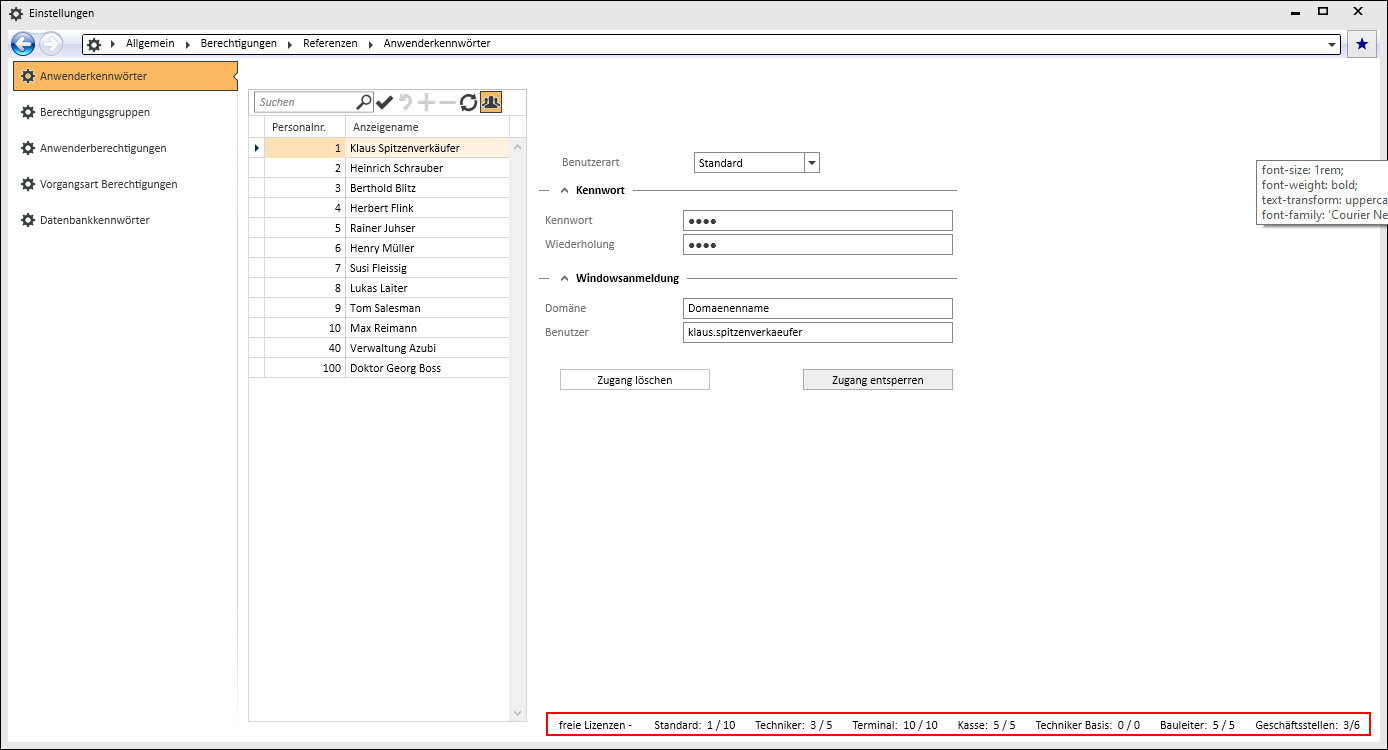
The number of licenses available (free) for each user type (Default / Technician / Terminal) is shown in the lower part of the screen mask. This information is read out from the central license file in the PARA directory.