 Support for eserp 1.5 has been discontinued as of 01.01.2024, the online help will no longer be updated
 Serial number search
Items | Serial number search
To ensure traceability of the items in line with DIN ISO 9001 it may be necessary to record certain items (such as system components) together with their serial numbers. For this purpose eserp allows you to manage the serial number of every single item from the time it is received in the warehouse until it leaves the warehouse, thus ensuring traceability.
You can use the serial number search to determine where an item with a particular serial number is located.
Requirements for serial number management
To manage the serial numbers of warehouse items it is necessary to set With serial number management to Complete under Settings | Items | Item management | Settings - 'General' area and to activate the With serial number management option for the item on the Items | Items / Services | Details II - 'Items' area tab.
General information about serial numbers
You can basically record serial numbers by means of Stock entry, a manual stock movement (delivery), in the warehouse, and for system components (for miscellaneous items).
Only existing serial numbers can be supplied from a warehouse (delivery slip, manual delivery (on order), etc.).
You can only select serial numbers that were also supplied to the order for a return delivery.
All stock movements that involve serial numbers are also booked in the LAGIOSERV table in the background.
Only those serial numbers for system components can be selected that have actually been supplied.
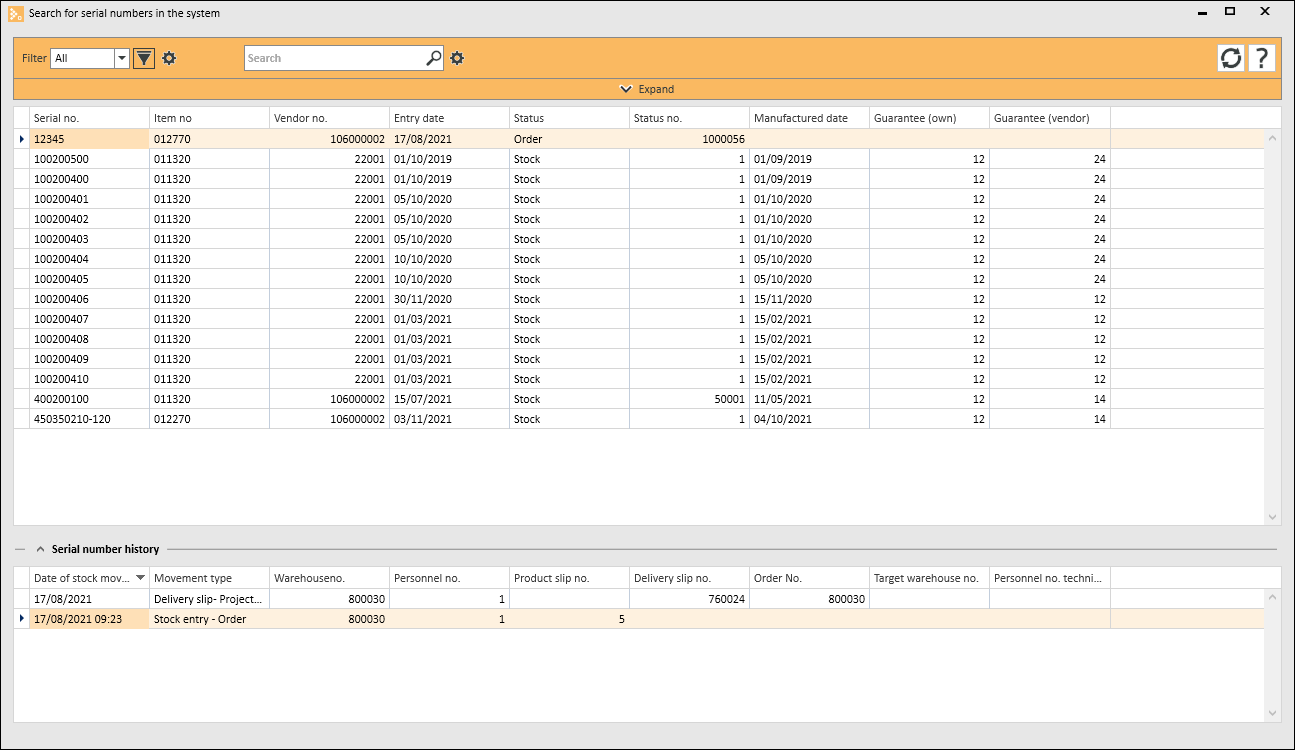
'Serial numbers' list
All the recorded serial numbers along with the most important information are shown in the upper list. Further columns can be added to the list using the column editor.
You can also use filters to restrict the list and use the search field above the list to find a serial number.
Go to
You can use the Go to context menu command to open the Go to function for the associated modules.
Also see Go to function
 List functions
Column selection / Column editor
The columns to be displayed in a Data Grid can be set using the Column Selection dialog. To open Column Selection, right click on the table column header and choose Show Column Editor from the context menu.

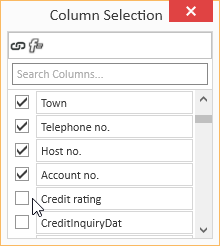
In the Column selection window, you can show the desired columns by activating the option in front of the column name.
Deactivate the check box in front of the column name to remove the column from the list view.
To save the list view layout, right click on the column header and select Save layout from the context menu.
Move columns / Change column order
Each user can set the column order individually. To move a column, click on the column and hold down the left mouse button, drag it to the desired position between two columns and release the mouse button (drag and drop).
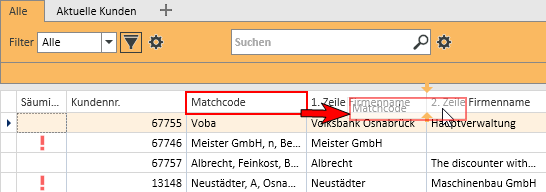
Suitable locations for inserting a column are marked with two colored arrows.
Optimum width
Adjusts the column width to automatically match the contents. Right click on the column header and select Optimum width from the context menu.
Use the Save layout function to permanently store the changed column width.
If you do not save the Layout after changing the column width, the column width will be reset when you restart the module.
Optimum width (all columns)
Adjusts the column width to automatically match the contents for all columns. Right click on the column header and select Optimum width (all columns) from the context menu.
Use the Save layout function to permanently store the changed column width.
If you do not save the Layout after changing the column width, the column width will be reset when you restart the module.
Column filters
You can use column filters to display only certain data sets from extensive lists.
You can use the column filters for example to display all the client data sets for a particular ZIP code. Only the ZIP codes that are already recorded for the client data sets will be displayed.
To filter the data sets, click on the desired column (for example ZIP code) and on the filter icon  there.
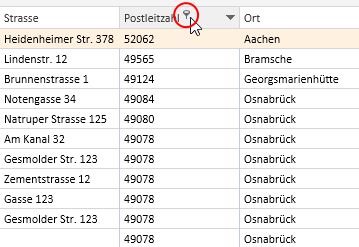
You will now see a list of all the recorded ZIP codes.
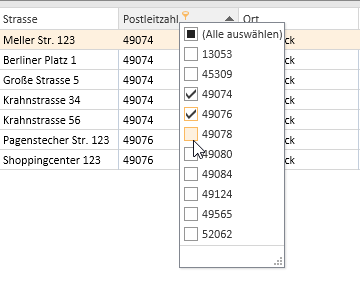
You can now select one or more values for the filter. There are also additional filters available (all, user defined, empty, not emptry).
If a filter is active for a column, this is indicated by the colored filter icon  in the column header. Click on the icon to edit the filter.
Sort order
The values in a column can be sorted in ascending or descending order by clicking on the table column header.
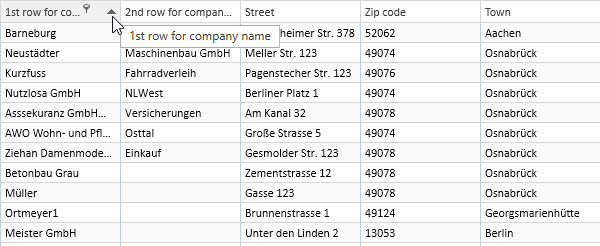
You can sort rows without changing existing sort conditions as follows:
-
Press and hold down the Shift key and click on the column header until an up or down arrow appears
-
Right click on the column header and select Ascending order or Descending order from the context menu.
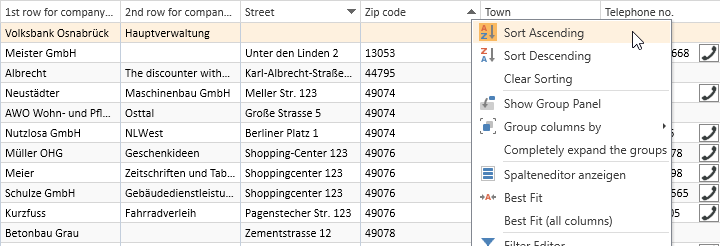
In the above example, the list is sorted by Zip code (ascending order) and additionally by Street (descending order). Thus, if there are several entries with the same Zip code, these entries will be sorted according to the Street field.
To remove a column from the sort criteria, press and hold down the Ctrl key and click on the column.
Column summaries
A column summary can be displayed below each column in the list.

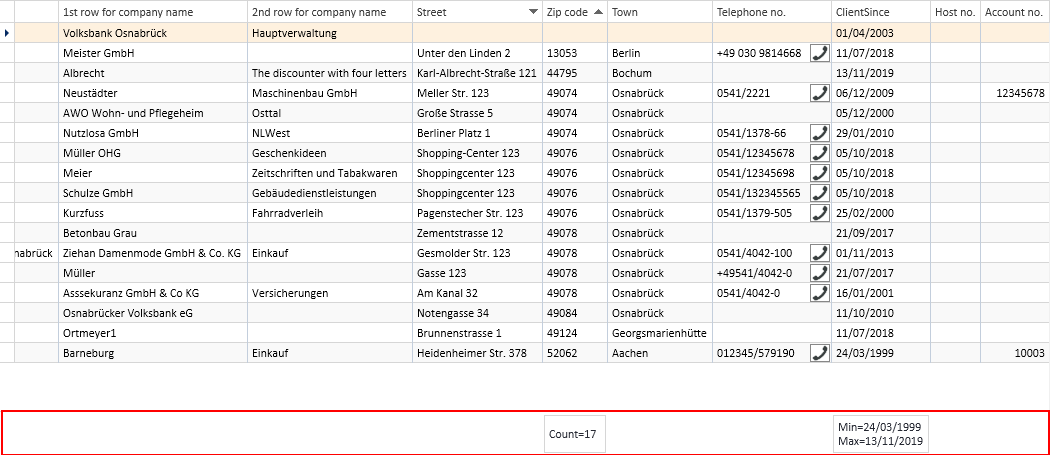
To configure this column summary, right click on the column header and select Show Sums from the context menu.
A Totals field is now shown below the list. Right click in this field to select the value to be displayed for this column.
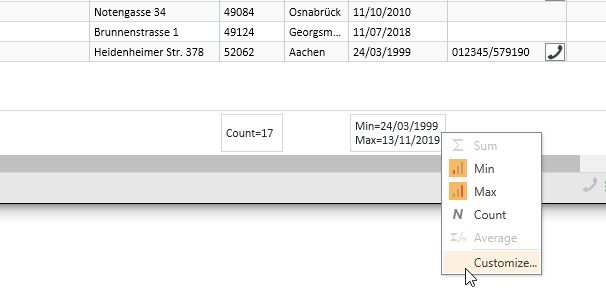
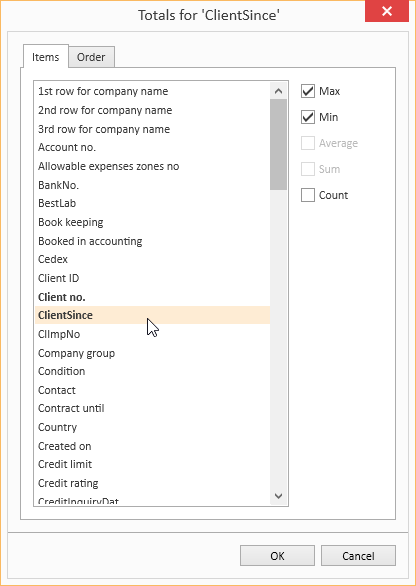
You can use the Customize... context menu command to make more detailed settings for the column summaries, including setting the Sort order and labeling when there are several sums.
Groupings
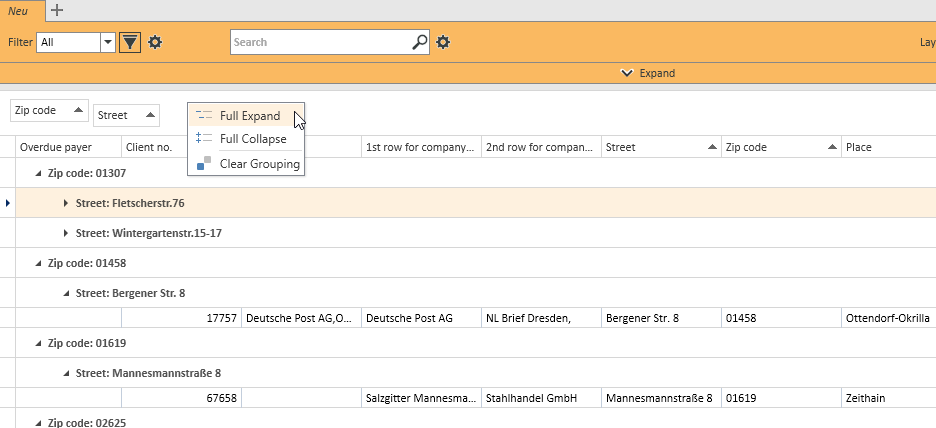
To group according to one or more columns, proceed as follows:
Method 1
- Right click on the column header and select Show grouping field from the context menu.
- Drag a column header into the Grouping field.
- You can drag additional columns into the grouping field to further subdivide a grouping.
- To remove the grouping, drag the column header from the group selection field and drop it back in the list or select the Remove grouping command in the context menu.
Method 2
Right click on the column header and select Group columns by from the context menu. You can now select whether to use the Standard grouping or grouping according to Initial letters.
To remove the grouping, right click on the column header or the particular column in the Group Selection field and select Remove Grouping from the context menu.
Grouping summaries
Summaries can be displayed for individual groupings.
To do this, right click in the column header in the Group Selection field and select Group Sum Editor from the context menu.
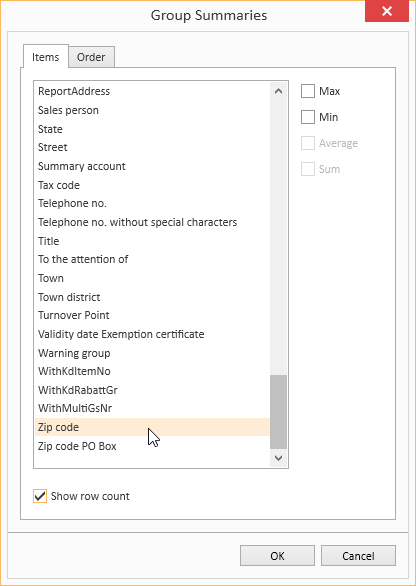
You can now define criteria for a Group Summary in the Group Selection dialog. You can use the Show number of rows option to display the number of data sets in a group.
Sort according to Grouping summaries
When a data grid has been grouped and a Grouping summary has been defined, the grouped data grid can also be sorted according to the values in the Grouping summary. Right click on the column header that is used for the grouping and select Sort by Group sorting from the context menu.
Calculated Fields
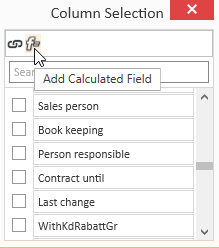
You can create Calculated fields in the Column editor. To do this, open the Column editor and click on the Add calculated field button.
First, you will be asked for a field name. Enter the header for the Calculated Field in the box. When you click OK to confirm the dialog, the Expression editor opens.
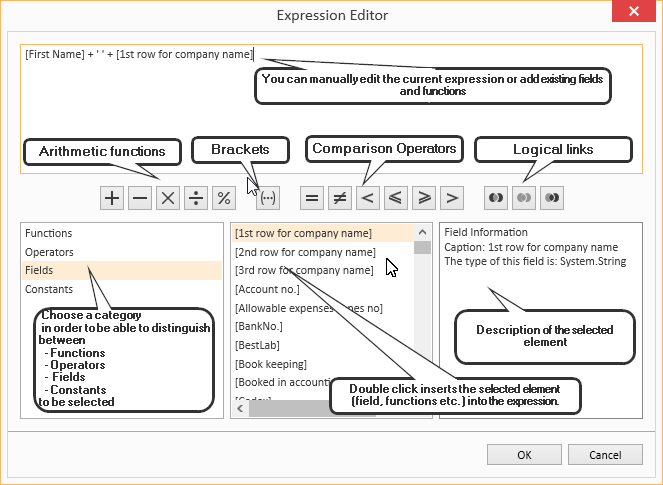
You can find a list of the functions and operators under Functions in Calculated fields.
To later edit the Expression, right click on the table column header of a Calculated Field and select Edit Expression from the context menu.
Iif(IsNullOrEmpty([Vorname]), [1. Zeile Firmenname], [Vorname] + + [1. Zeile Firmenname])In this example, the First name and Company 1 fields are combined into one field with a space between them, but only if the First name field is filled out. Otherwise, only the Company 1 field is output.
Field Background color
Data fields that meet certain conditions can be highlighted with a Background color.
To set Background colors for individual fields, right click on a column and select Background color from the menu.
You can now define a new rule. All the fields that match this rule will then be highlighted in the selected color.
The pencil icon opens the Expression editor. You can create more complex expressions with this editor. Also see Calculated Fields.
When you have successfully created a rule, close the window by clicking the OK button. The rule will be applied when you refresh the View.
Rule: [NoEmployees] < 30
Color: #FF009DFF
This rule colors all fields in the Client no. column blue if the number of employees entered in the corresponding data set is less than 30.
Using and Managing layouts
Right click on a column to open a context menu where you can access the Layout settings.
Load Layout
The Load layout command displays all the layouts that you have already created.
You can easily switch to another Layout here.
Save Layout / Save Layout As
When you Save Layout, the current View will be saved in the currently open Layout. All Expressions, Calculated Fields and Sort Groups will be included in this Layout and can be applied as required.
You can use the Save Layout As command to save the current View as a new separate Layout.
Specify the Layout properties for this.
Edit Layout
If you want to change the properties of the current Layout, select Edit Layout Properties from the menu. The Layout properties window opens. You can make the changes that you want here.
Reset Layout / Delete Layout
If the edited Layout is not what you want, you can undo the changes you made and revert to the original Layout by selecting Reset Layout from the menu. You can also use the Delete Layout command in the menu to delete a Layout entirely if you no longer want it.
'Serial numbers history' list
If a serial number is marked in the upper list, all the stock movements for this serial number and therefore the item will be listed under Serial number history. THi gives you an overview of the stages that the item with the serial number has passed through and the current situation.
As well as the Movement type, the Booking data and the Order number, Delivery slip or Stock entry note numbers are also displayed.
The general list functions are also available in this list.
List functions
Column selection / Column editor
The columns to be displayed in a Data Grid can be set using the Column Selection dialog. To open Column Selection, right click on the table column header and choose Show Column Editor from the context menu.
In the Column selection window, you can show the desired columns by activating the option in front of the column name.
Deactivate the check box in front of the column name to remove the column from the list view.
To save the list view layout, right click on the column header and select Save layout from the context menu.
Move columns / Change column order
Each user can set the column order individually. To move a column, click on the column and hold down the left mouse button, drag it to the desired position between two columns and release the mouse button (drag and drop).
Suitable locations for inserting a column are marked with two colored arrows.
Optimum width
Adjusts the column width to automatically match the contents. Right click on the column header and select Optimum width from the context menu.
Use the Save layout function to permanently store the changed column width.
If you do not save the Layout after changing the column width, the column width will be reset when you restart the module.
Optimum width (all columns)
Adjusts the column width to automatically match the contents for all columns. Right click on the column header and select Optimum width (all columns) from the context menu.
Use the Save layout function to permanently store the changed column width.
If you do not save the Layout after changing the column width, the column width will be reset when you restart the module.
Column filters
You can use column filters to display only certain data sets from extensive lists.
You can use the column filters for example to display all the client data sets for a particular ZIP code. Only the ZIP codes that are already recorded for the client data sets will be displayed.
To filter the data sets, click on the desired column (for example ZIP code) and on the filter icon there.
You will now see a list of all the recorded ZIP codes.
You can now select one or more values for the filter. There are also additional filters available (all, user defined, empty, not emptry).
If a filter is active for a column, this is indicated by the colored filter icon in the column header. Click on the icon to edit the filter.
Sort order
The values in a column can be sorted in ascending or descending order by clicking on the table column header.
You can sort rows without changing existing sort conditions as follows:
-
Press and hold down the Shift key and click on the column header until an up or down arrow appears
-
Right click on the column header and select Ascending order or Descending order from the context menu.
In the above example, the list is sorted by Zip code (ascending order) and additionally by Street (descending order). Thus, if there are several entries with the same Zip code, these entries will be sorted according to the Street field.
To remove a column from the sort criteria, press and hold down the Ctrl key and click on the column.
Column summaries
A column summary can be displayed below each column in the list.
To configure this column summary, right click on the column header and select Show Sums from the context menu.
A Totals field is now shown below the list. Right click in this field to select the value to be displayed for this column.
You can use the Customize... context menu command to make more detailed settings for the column summaries, including setting the Sort order and labeling when there are several sums.
Groupings
To group according to one or more columns, proceed as follows:
Method 1
- Right click on the column header and select Show grouping field from the context menu.
- Drag a column header into the Grouping field.
- You can drag additional columns into the grouping field to further subdivide a grouping.
- To remove the grouping, drag the column header from the group selection field and drop it back in the list or select the Remove grouping command in the context menu.
Method 2
Right click on the column header and select Group columns by from the context menu. You can now select whether to use the Standard grouping or grouping according to Initial letters.
To remove the grouping, right click on the column header or the particular column in the Group Selection field and select Remove Grouping from the context menu.
Grouping summaries
Summaries can be displayed for individual groupings.
To do this, right click in the column header in the Group Selection field and select Group Sum Editor from the context menu.
You can now define criteria for a Group Summary in the Group Selection dialog. You can use the Show number of rows option to display the number of data sets in a group.
Sort according to Grouping summaries
When a data grid has been grouped and a Grouping summary has been defined, the grouped data grid can also be sorted according to the values in the Grouping summary. Right click on the column header that is used for the grouping and select Sort by Group sorting from the context menu.
Calculated Fields
You can create Calculated fields in the Column editor. To do this, open the Column editor and click on the Add calculated field button.
First, you will be asked for a field name. Enter the header for the Calculated Field in the box. When you click OK to confirm the dialog, the Expression editor opens.
You can find a list of the functions and operators under Functions in Calculated fields.
To later edit the Expression, right click on the table column header of a Calculated Field and select Edit Expression from the context menu.
Iif(IsNullOrEmpty([Vorname]), [1. Zeile Firmenname], [Vorname] + + [1. Zeile Firmenname])In this example, the First name and Company 1 fields are combined into one field with a space between them, but only if the First name field is filled out. Otherwise, only the Company 1 field is output.
Field Background color
Data fields that meet certain conditions can be highlighted with a Background color.
To set Background colors for individual fields, right click on a column and select Background color from the menu.
You can now define a new rule. All the fields that match this rule will then be highlighted in the selected color.
The pencil icon opens the Expression editor. You can create more complex expressions with this editor. Also see Calculated Fields.
When you have successfully created a rule, close the window by clicking the OK button. The rule will be applied when you refresh the View.
Rule: [NoEmployees] < 30
Color: #FF009DFF
This rule colors all fields in the Client no. column blue if the number of employees entered in the corresponding data set is less than 30.
Using and Managing layouts
Right click on a column to open a context menu where you can access the Layout settings.
Load Layout
The Load layout command displays all the layouts that you have already created.
You can easily switch to another Layout here.
Save Layout / Save Layout As
When you Save Layout, the current View will be saved in the currently open Layout. All Expressions, Calculated Fields and Sort Groups will be included in this Layout and can be applied as required.
You can use the Save Layout As command to save the current View as a new separate Layout.
Specify the Layout properties for this.
Edit Layout
If you want to change the properties of the current Layout, select Edit Layout Properties from the menu. The Layout properties window opens. You can make the changes that you want here.
Reset Layout / Delete Layout
If the edited Layout is not what you want, you can undo the changes you made and revert to the original Layout by selecting Reset Layout from the menu. You can also use the Delete Layout command in the menu to delete a Layout entirely if you no longer want it.
Go to
You can use the Go to context menu command to open the Go to function for the associated modules.
Also see Go to function